Files

The Reliability Of The Cloud, The Ease Of A Local Drive

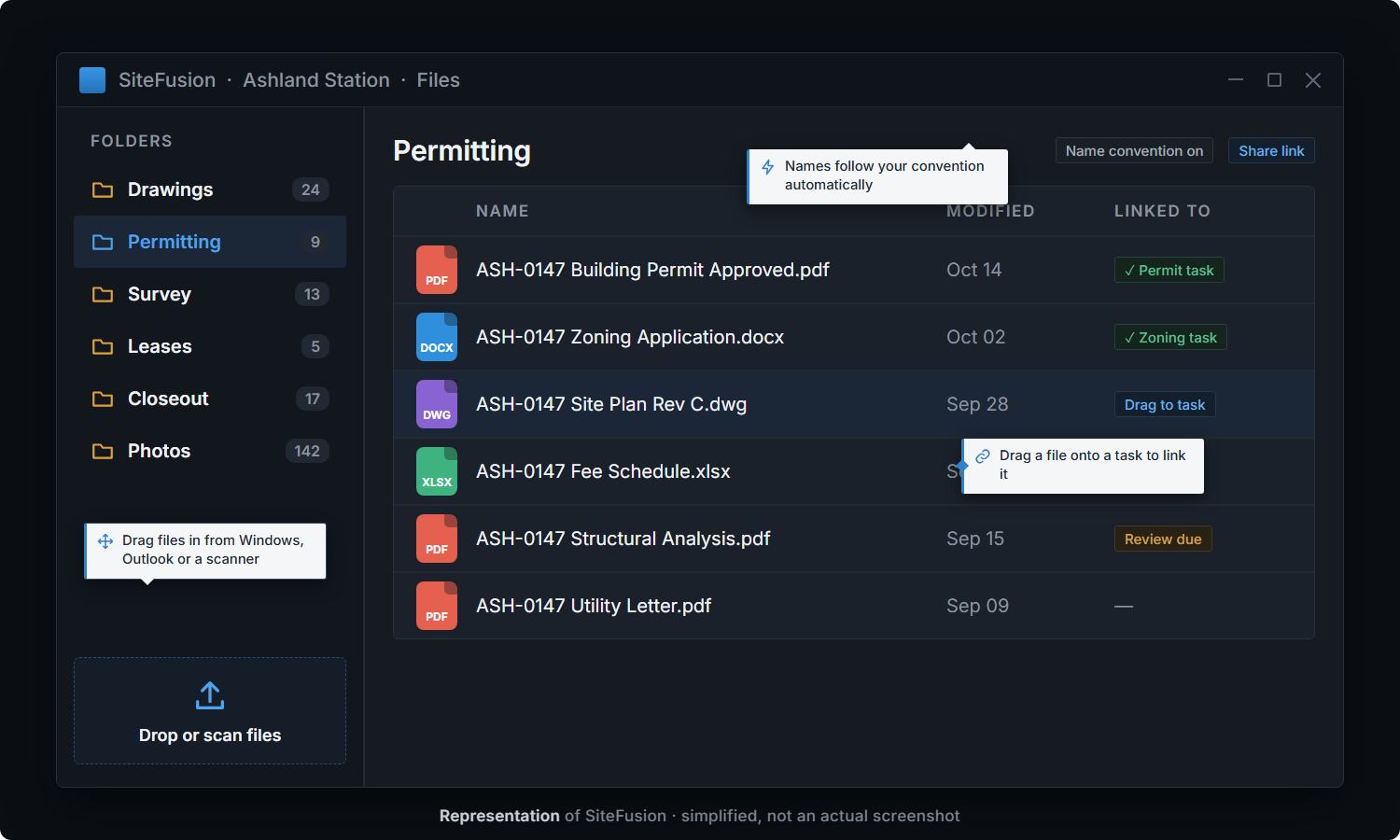
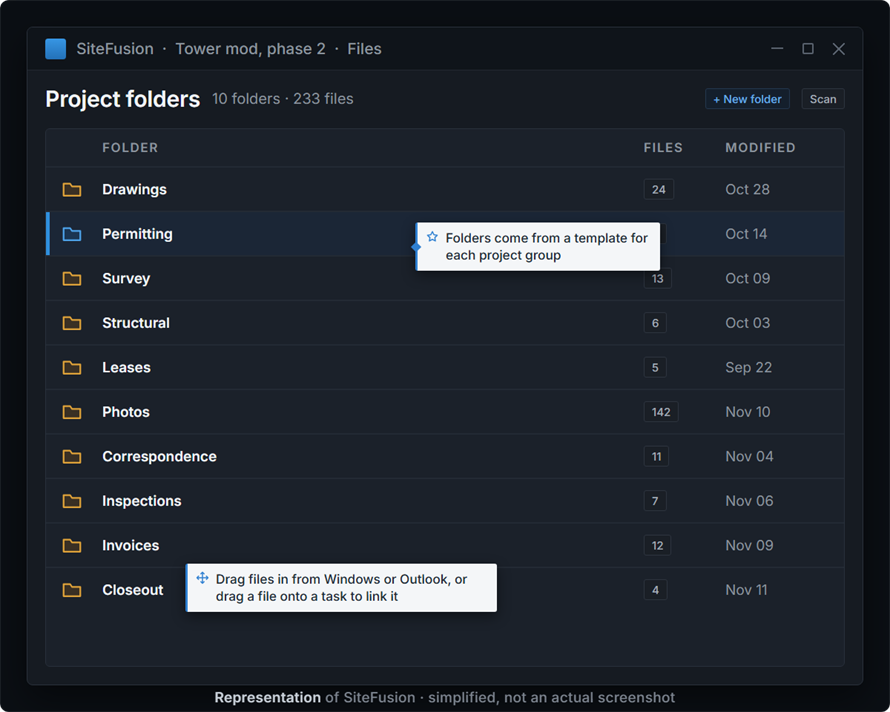
A project's file folders in SiteFusion, such as Drawings, Permitting and Survey, with file counts and dates

Every file is with the record it belongs to.

Stop searching shared drives and email. Each site, project and lease has its own folders, and your team works in them the way they work on their own computer.

  • Double-Click To Open

    SiteFusion creates a matching local folder, downloads the file and opens it.

  • Drag And Drop

    Drop files in from your computer to upload them to the right folder.

  • Search Inside Your Files

    Type a keyword to search the files in your cloud folders, then open the one you need.

Where Files Live

One System, Organized Around Your Work

Sites

Records for the location that outlast any one project.

Projects

Drawings, permits, reports and deliverables for each job.

Leases

Leases and amendments, stored with the lease record.

Invoices And Expenses

Backup attached to the financial record, and searchable.

Parts

Spec sheets and documents for the parts you use.

Company Library

General documents that everyone needs, in one shared place.

Local Mirroring

Your Folders In The Cloud And On Your Computer

Work on files in the programs you already use

There is no VPN to connect and no special editor to learn. SiteFusion keeps a local copy in a folder that matches the cloud, so a file opens in the program it normally opens in. If you close the window with changes that were not uploaded, SiteFusion reminds you.

01
Open

Double-click and the file is downloaded

02
Edit

Use the program you always use

03
Upload

Send your newer copy with one click
You Always Know Which Copy Is Current

Cloud onlyDownload it when you need it
Local onlyIt hasn't been uploaded yet
Local is newerYou have changes to upload
Local is olderSomeone has a newer version

File Tools

Everything You Do With A File, From One Menu

Sharing

Send a link instead of an attachment

Share files with people outside your company. They click the link or paste it into a browser to get the file, with no login.

  • Set the date a share expires, or allow one use only.
  • See every shared file in one list.
  • Revoke a share at any time.
  • Create an email from the file menu, and compress files before you send them.

Search

Find it even if you forgot the file name

Type a keyword and SiteFusion searches across your cloud folders for sites, projects, leases, parts, invoices, expenses or the library. Results only include what your permissions allow, and you can open a file right from the list.

Scanning

From paper to the project folder

Scan straight into the folder you have open, using a connected scanner.

  • Use the automatic document feeder and skip blank pages.
  • Choose the resolution and pixel type.
  • Save as PDF, JPEG or TIFF.
  • Scan and upload in one step, or scan only.

File Names

The same name no matter who saved it

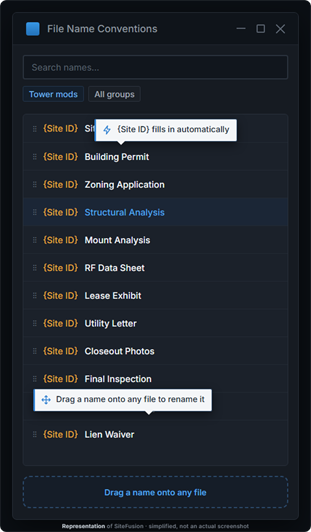
Build name conventions from project details and dates, for one project group or for all of them. SiteFusion lists the names, and renaming a file is as simple as dragging a name onto it.

The File Name Conventions window with a list of standardized names ready to drag onto a file

Notifications

Know when a file changes

Create a notification for the file activity you care about, and get it in SiteFusion, by email, or both.

  • Watch for files that are uploaded, opened, moved, deleted or renamed.
  • Narrow it to a folder or a file name, such as ".pdf" or "myfile".
  • Limit it to activity by one user.

Task Deliverables

Tie the file to the work

Associate a file with a task, and its icon appears in the task screen for anyone to open with a double-click. From the file list, you can open the project's tasks to see where it fits.

File Collector

Helpful in the field with a limited connection

Tell SiteFusion which folders on your computer to watch for new files and photos, including sub-folders. It finds what is new and collects it for upload when you are ready.

Access

The Right Files For The Right People

Folder Rules By Market

Allow a user all project folders, only the folders you list, or all folders except the ones you list.

User Permissions

Decide who can open and add files, and search only returns what each user can see.

In The Field

Open site, project and library files in the mobile app, and mark up PDF drawings and documents on site, saved straight back to the folder.

Put your files where the work is

We'll show you how a project folder works from the office to the field.