Tasks

Know What Is Next, What Is Late, And What Is Holding You Up

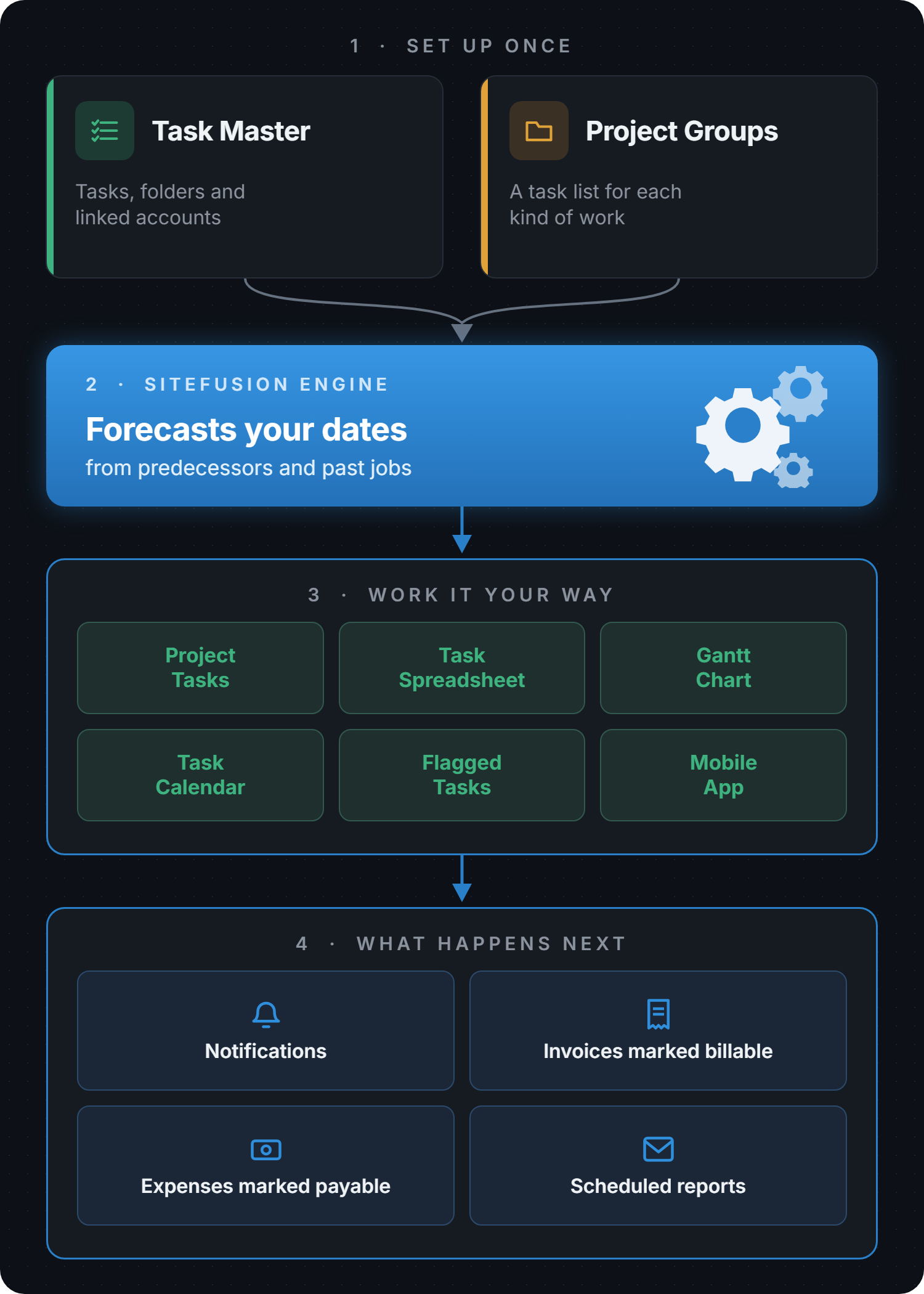
SiteFusion tasks: the Task Master and project groups feed the SiteFusion Engine, which forecasts dates across the task screens and drives notifications, billable invoices, payable expenses and scheduled reports

Every project stays on course, and everyone can see it.

Define your work once. SiteFusion forecasts the dates, shows the schedule the way each person needs it, and tells accounting when work is done.

  • Automatic Forecasting

    Predict dates from task dependencies and how long the work really took on past jobs.

  • Focus On What Matters

    The flagged list brings the tasks that need action to the front.

  • Tied To The Money

    Complete a task, and its invoices and expenses move forward on their own.

One Schedule, Four Colors

Anyone Can Read A Project At A Glance

No Status

The task hasn't been touched yet.

Pending

The work is underway and needs watching.

Complete

The actual date is in, and it counts toward your averages.

Not Applicable

This task doesn't apply to this project.

Task Screens

The Same Tasks, Seen The Way You Need Them

Project Tasks

Everything that has to happen on one job

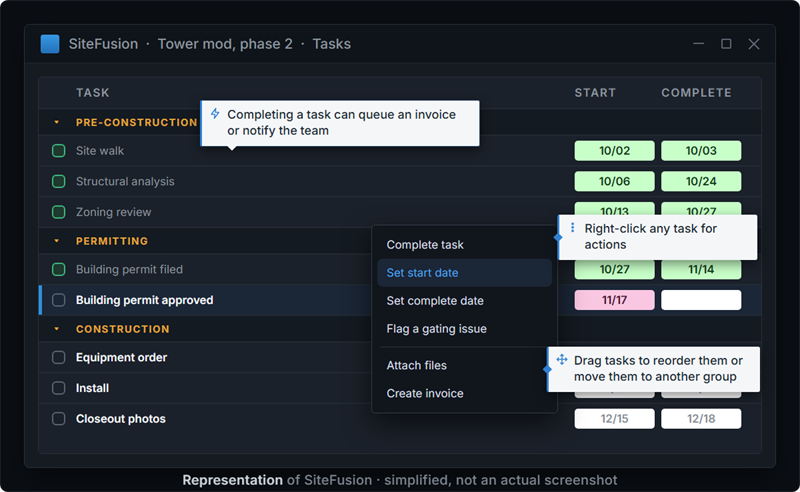
Each project shows the task list for its project group. Enter start and complete dates, data and notes, assign owners, and reorder or hide tasks as the job requires.

  • Drop a deliverable on a task, and its file icon appears in the task screen.
  • Open the project's comments and gating issues from the same screen.
  • Email the people on selected tasks, and check the weather for the location.
The project tasks screen with task groups, start and complete dates, and the task menu open

Task Spreadsheet

Every project in a group, one row each

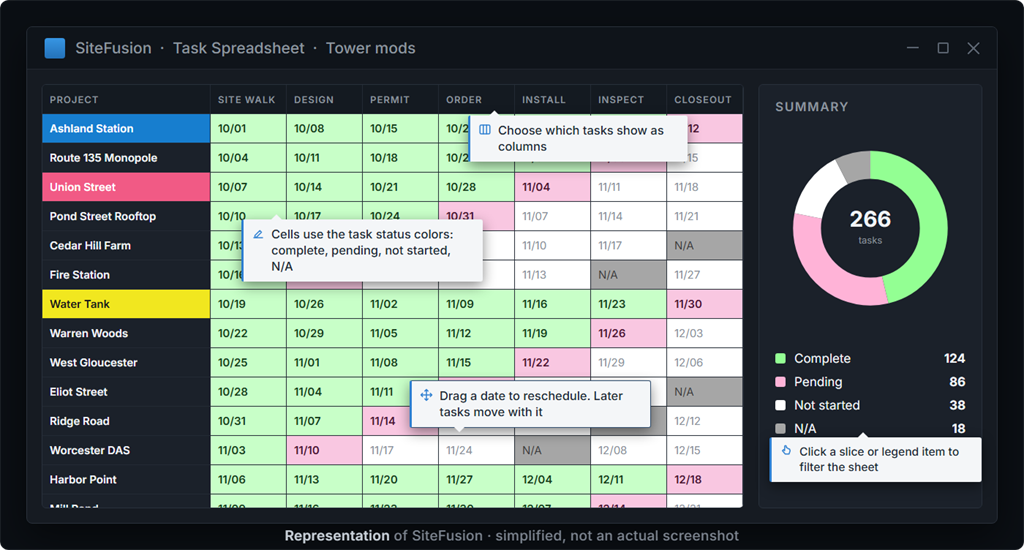
See and edit dates across a whole project group in one grid. A summary shows pending and flagged tasks at a glance, and you can show financials beside the tasks without leaving the screen.

  • Run the date forecast for selected projects.
  • Filter, highlight, print and export to Excel.
  • Turn what is on screen into a scheduled report.
The task spreadsheet showing many projects as rows with color-coded task dates and a summary chart

Gantt Chart

See the timeline and move it

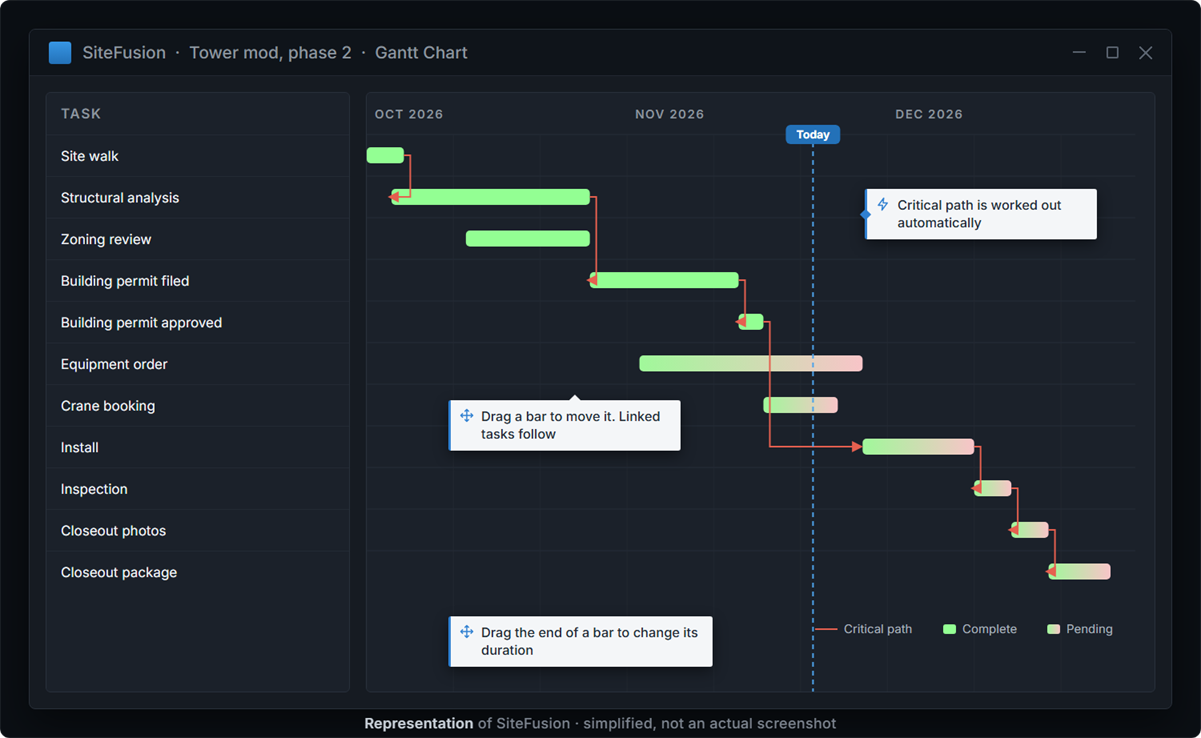
Open the Gantt chart right from the project's task screen. It runs beside your task list, so you can see how tasks line up over time and adjust dates as the schedule changes.

The Gantt chart beside a project's task list, with task bars on a dated timeline

Task Calendar

What is happening this month

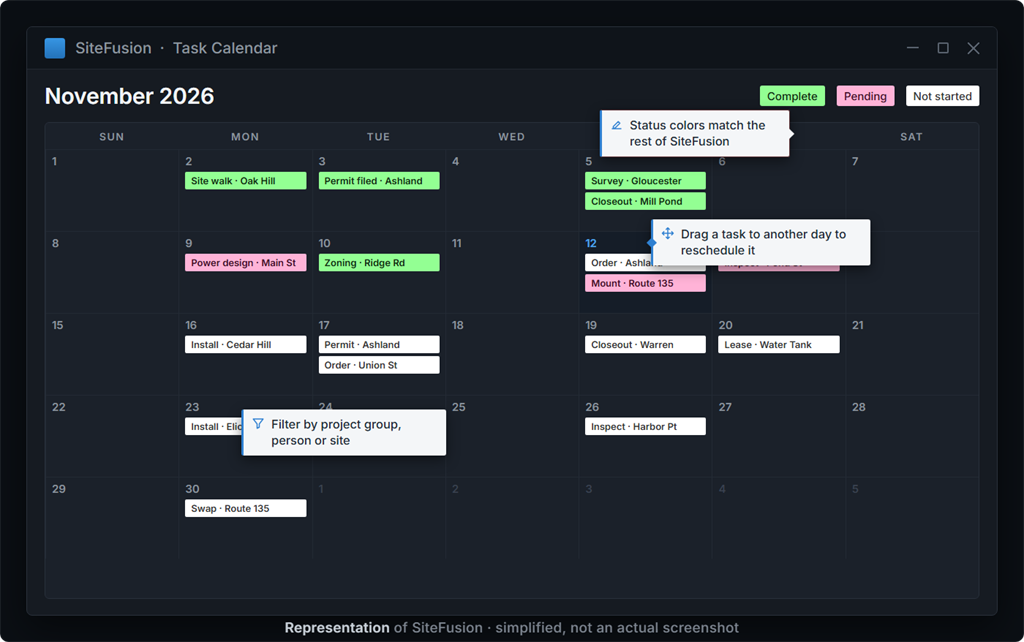
See tasks by day in a month view, filter by customer, manager or project group, and switch between customer colors and task status colors to answer a different question.

The task calendar month view with tasks color-coded by status

Flagged Tasks

The short list of what needs attention

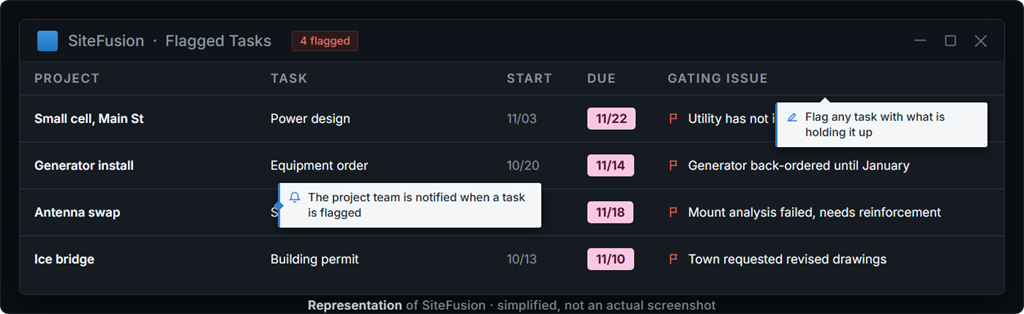
The flagged list brings the tasks that may be delaying progress together across your projects, and it can open when you start SiteFusion. Add comments and followers, put a task on hold, and see its project financials from the list.

The flagged tasks list with project, task, dates and gating issue columns

Mobile App

The schedule in your pocket

See a project's task list on your phone, with each task's status and dates color-coded the same way as the desktop. Fill in the project's lists during an inspection, right on site.

Learn more about the mobile app

Date Forecasting

A Schedule That Gets Smarter With Every Job

Stop guessing at dates

Give a task its predecessors, duration and lag, and SiteFusion forecasts when it will start and finish. When a task has no duration, the forecast uses the average time that task took on completed jobs, so your estimates improve as you finish work.

01
Link

Add predecessors to a task

02
Estimate

Set a duration or load the average

03
Forecast

Run it for one project or many

Forecast Tools

  • Predecessors and lag
  • Auto schedule
  • Average duration from past jobs
  • Complete when predecessors are complete
  • Forecast and pending dates marked separately

Built Around Your Process

Your Tasks, In Your Order, For Each Kind Of Work

Start with the Task Master

Administrators create fully customizable tasks and arrange them in any order or grouping. Large, complicated projects break down into clear steps, and every project in a group follows the same plan.

Folders And Markets

Keep your task library in folders, and make tasks available by market.

Collect Data On Tasks

Add dates and data entry to a task, as text, a check box or a custom list.

Linked Accounts

Assign income and expense accounts to tasks, and store your customer's own task and program IDs.

Retire, Don't Delete

Retire tasks you no longer use, and restore them if you need them again.

Stay Informed

The Right Update, Without Asking For It

Notifications

Watch selected tasks for a date change or a status change, and get it in SiteFusion, by email, or both.

Task Analysis

Have AI review up to 25 projects for overdue items, upcoming deadlines and schedule risks, using your company's own AI API key.

Connected To Your Financials

Finish The Task, And Accounting Already Knows

01
Mark

Set a task as billable or payable

02
Associate

Attach invoices and expenses to the task

03
Complete

The invoice is marked billable and the expense is marked payable

Learn more about financials

See your next project forecast itself

We'll build a task list around how your team really works.